LR Pro | Advanced

Go beyond Color Correction by utilizing with our Lightroom Pro service. With advance tools to restore details, enhance colors, and add depth to your images.

No Membership

$0.29 | Per Image

Pro Membership

$0.23 | Per Image

Basic Membership

$0.26 | Per Image

What We Do in LR Pro

Brushing

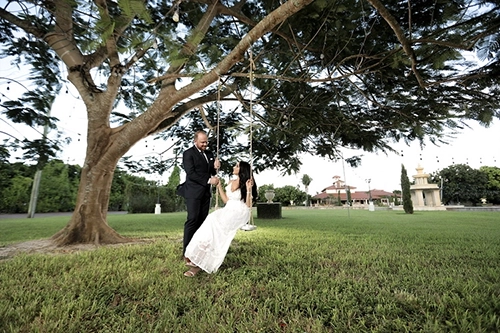
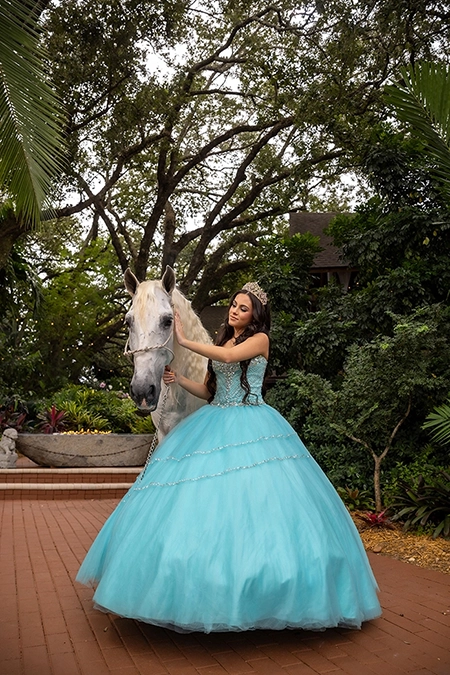
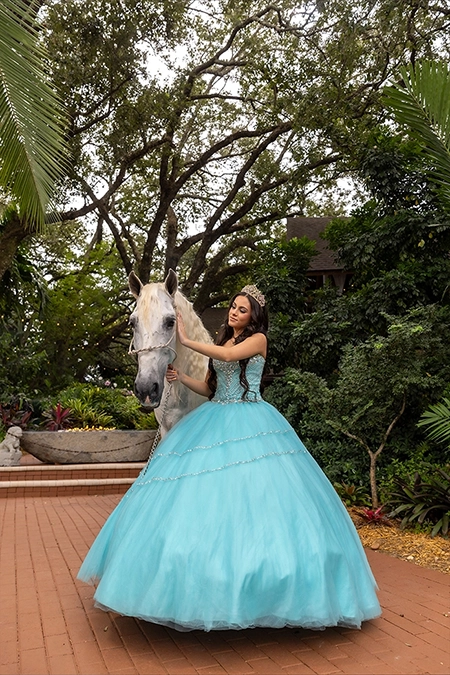
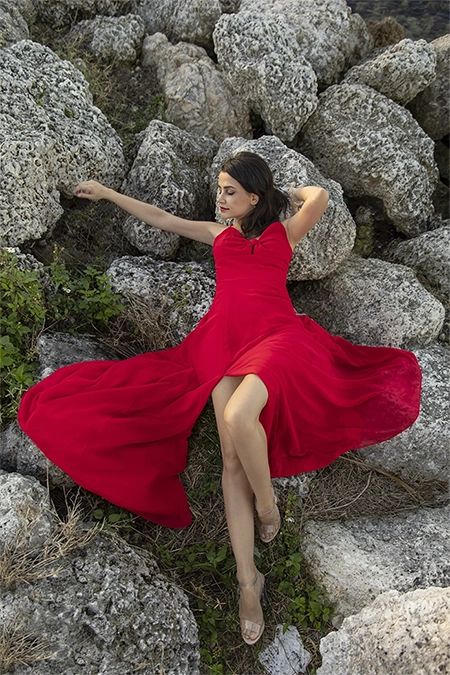
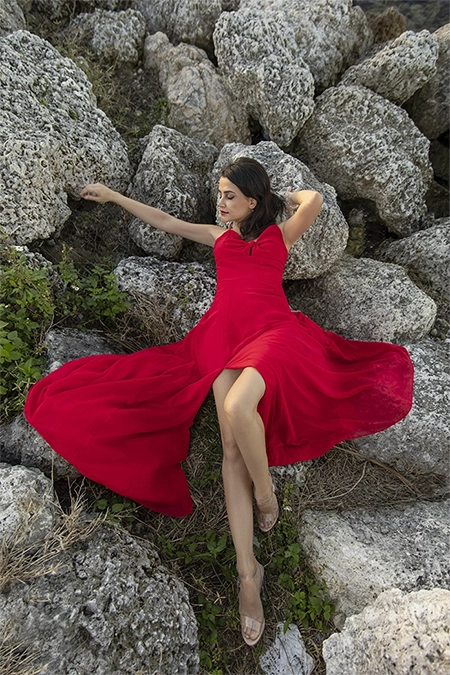
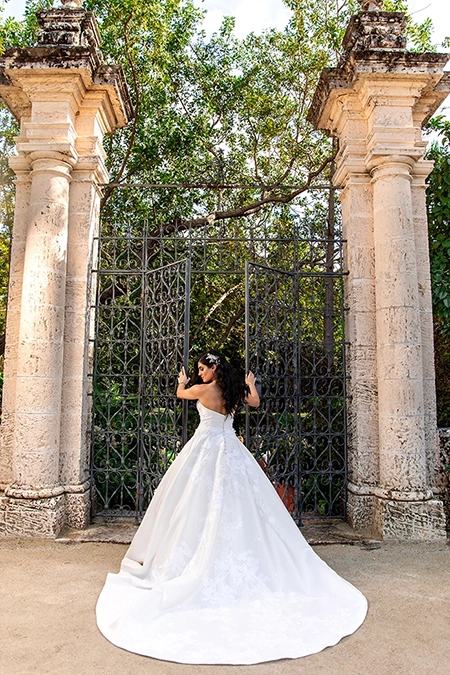
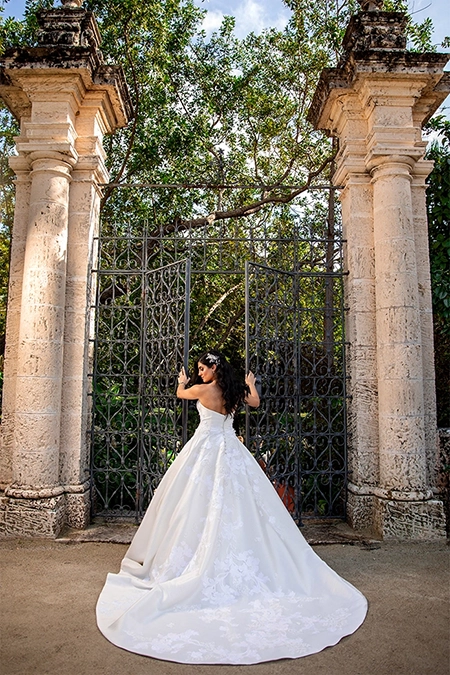
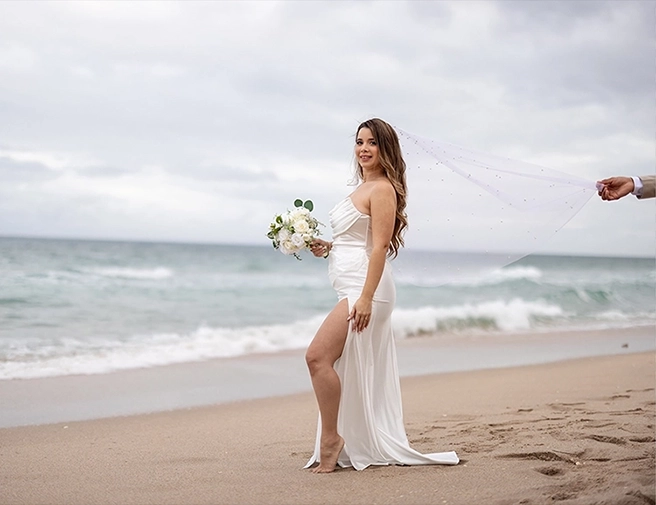
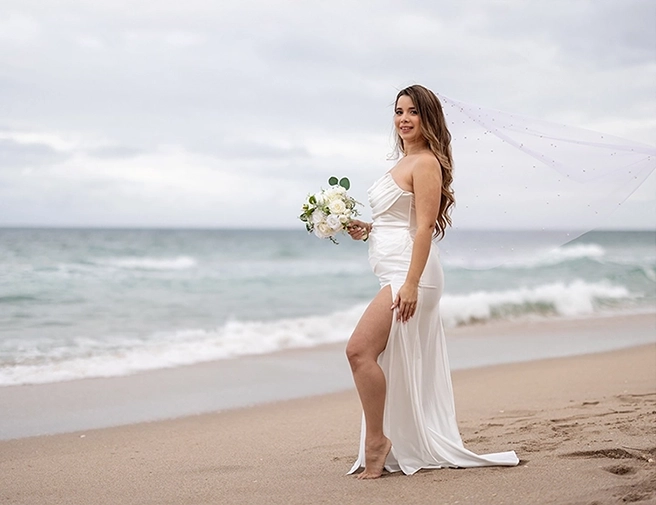
Brushing allow you to selectively lighten or darken specific areas of an image to create depth and emphasis. By applying these adjustments carefully, you can highlight important details or add shadows to enhance the overall composition. This technique helps in guiding the viewer’s attention and adding dimension to the image, ensuring that the desired areas stand out while maintaining balance throughout the photo.

Lightroom Pro Galexiaediting

Lens Correction

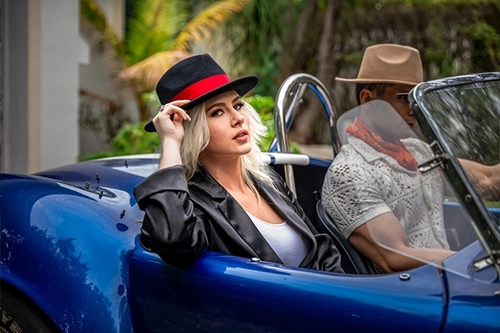
Lens Correction is designed to address common lens-related issues like distortion, vignetting, and perspective. By correcting these flaws, you can ensure straight lines remain correct, the image maintains even lighting across the frame, and perspective appears naturally. This helps produce a more polished and accurate representation of the scene.
Lightroom Pro Galexiaediting

Vignette

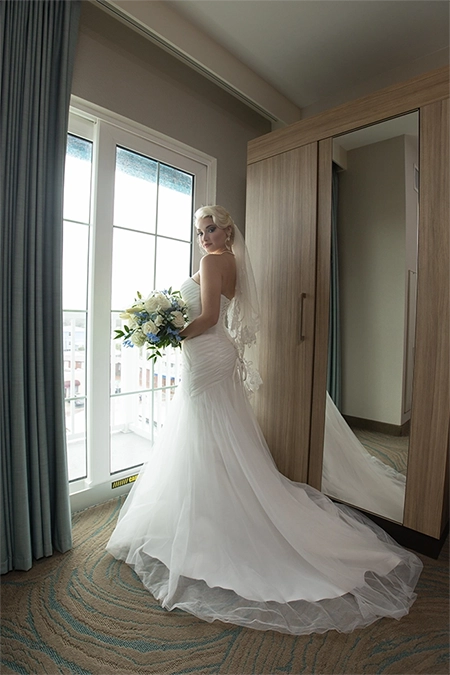
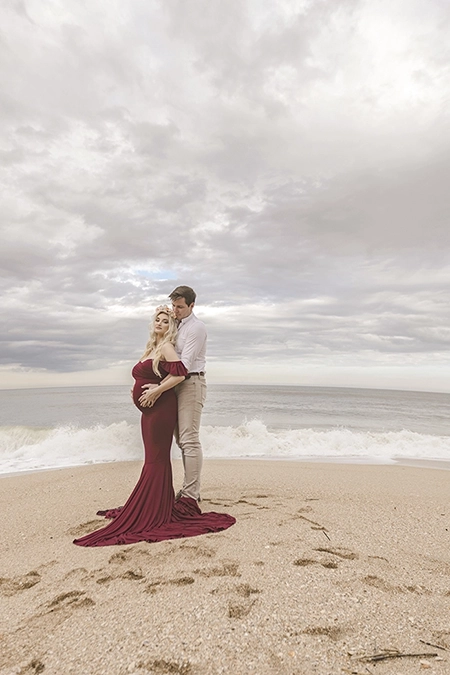
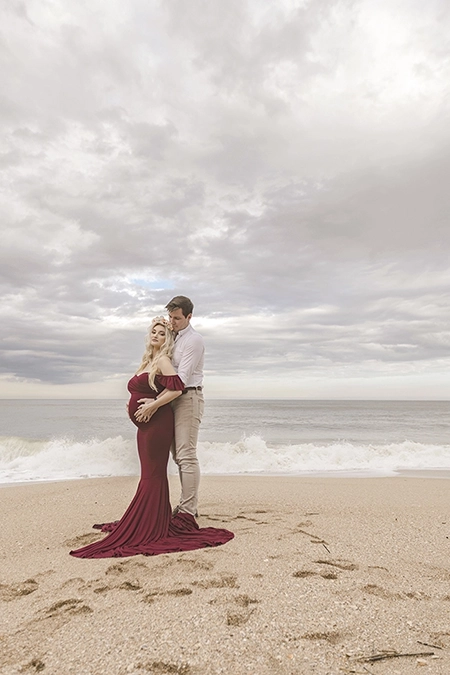
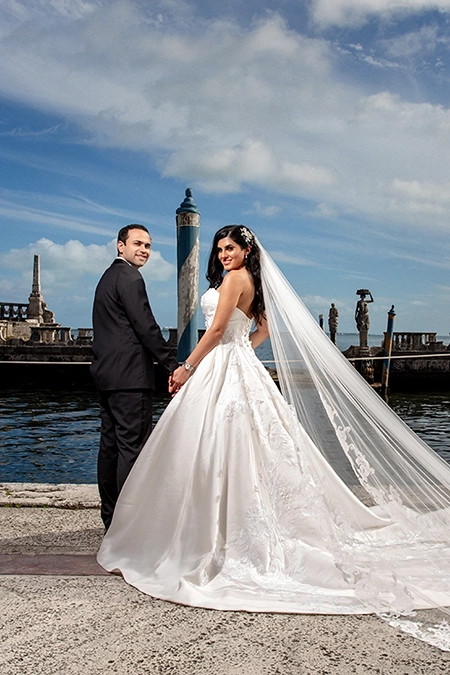
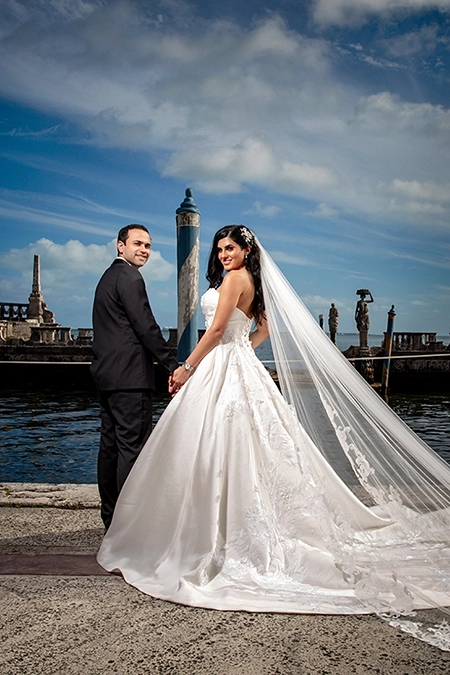
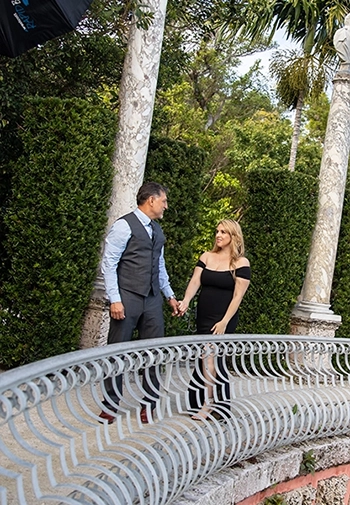
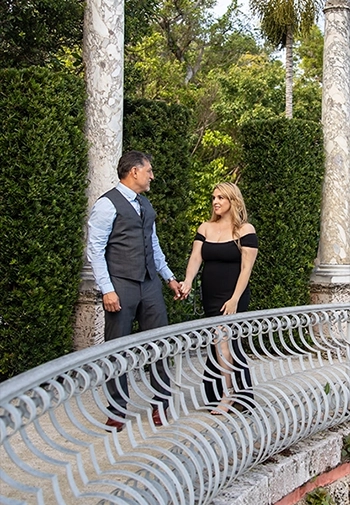
Vignette allows you to reduce brightness and color around the edges of the image, helping to draw attention to the central subject. By darkening or desaturating the periphery of the image, this adjustment points the viewer’s eye toward the focal point, enhancing the overall composition and emphasizing the importance of the main subject.

Lightroom Pro Galexiaediting

Brushing

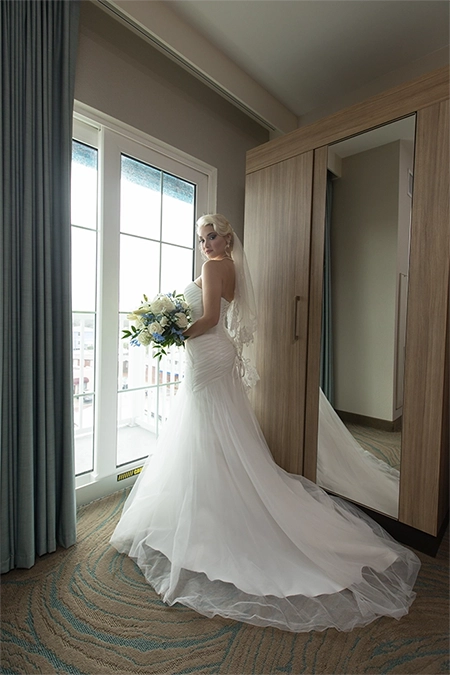
Brushing is done using different brushes, linear gradients, and radial gradients to achieve uniformity in lighting. This balances the lighting, adds depth and enhances visual appeal. This technique is applied to various parts of the image, including the background and the subject, to ensure no detail is overlooked.

See Some LR Pro Samples​​

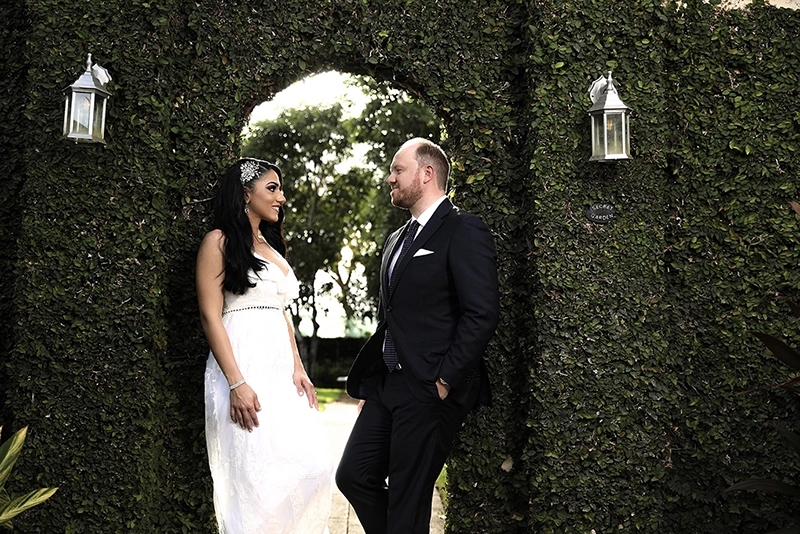
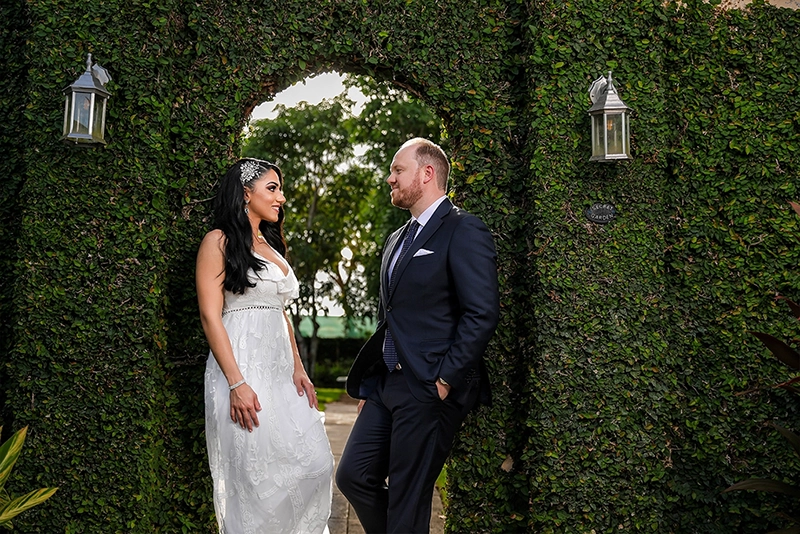
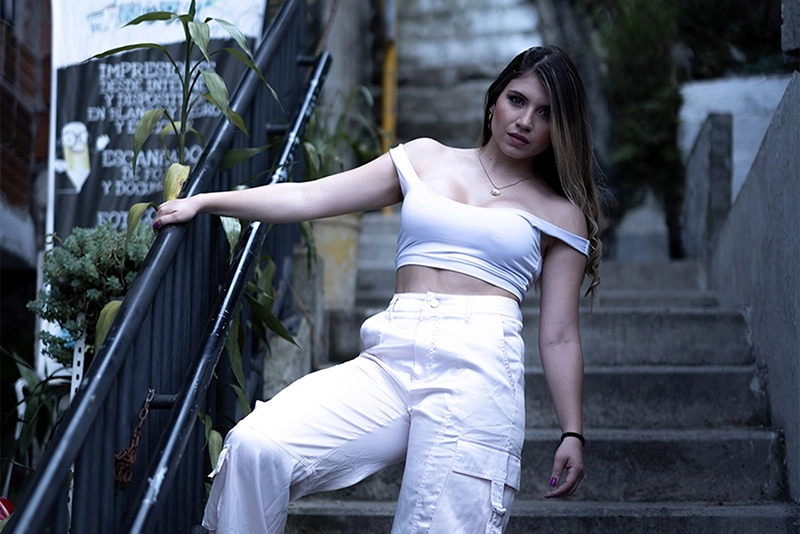
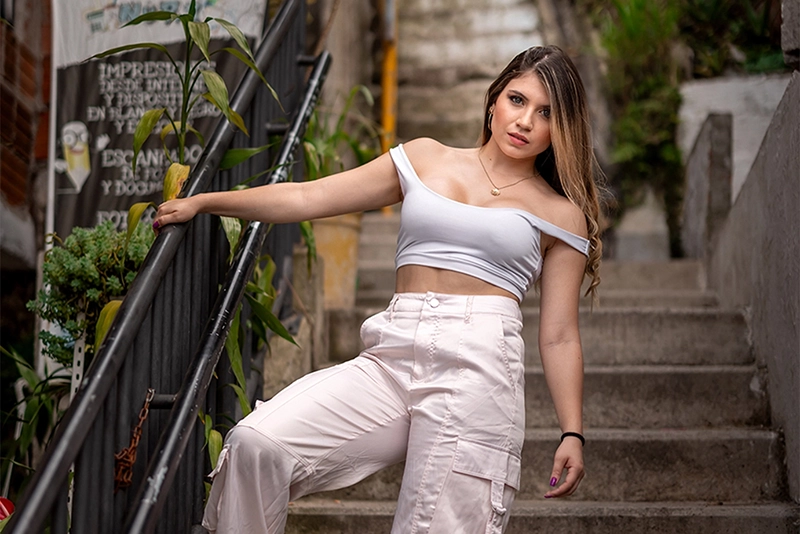
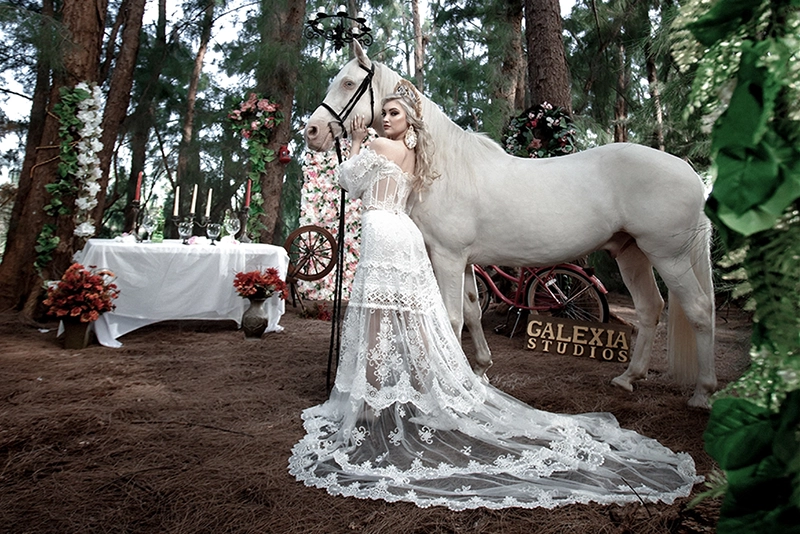
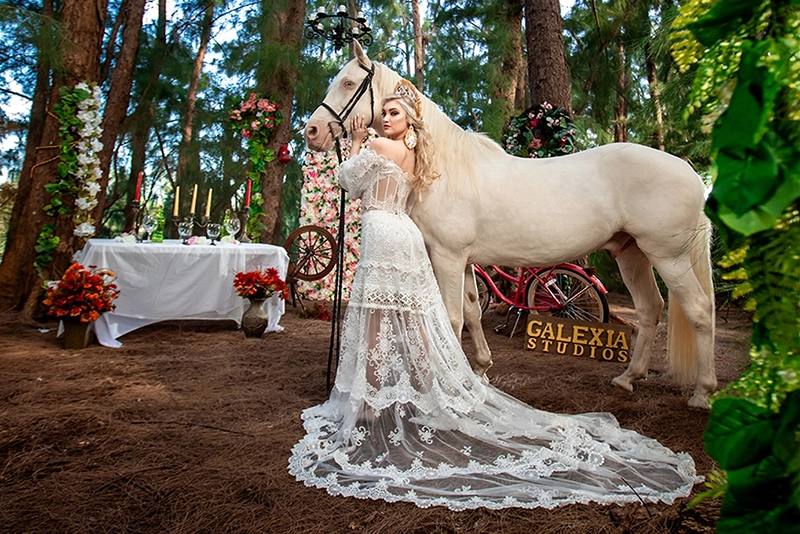
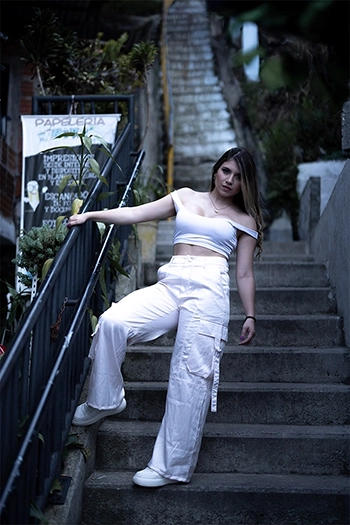
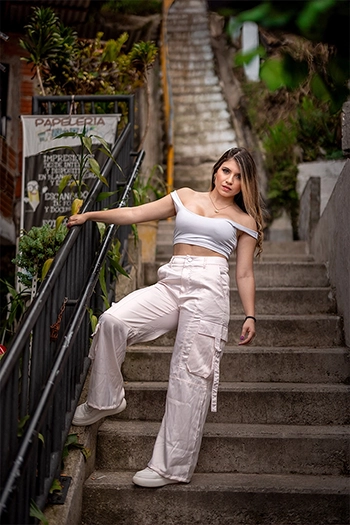
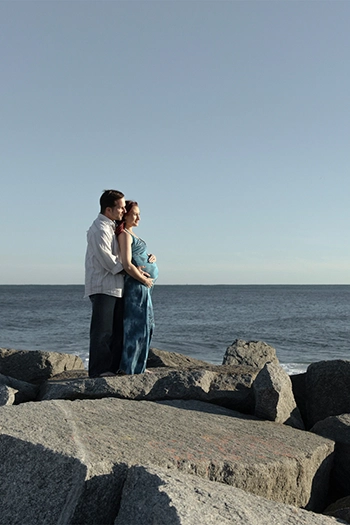
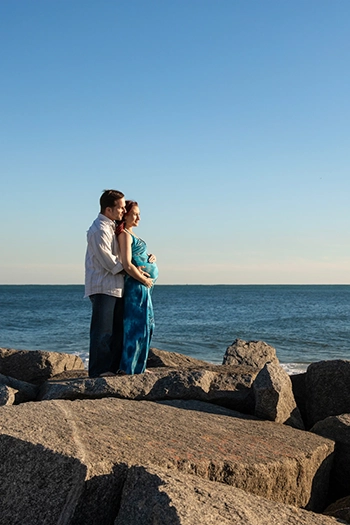
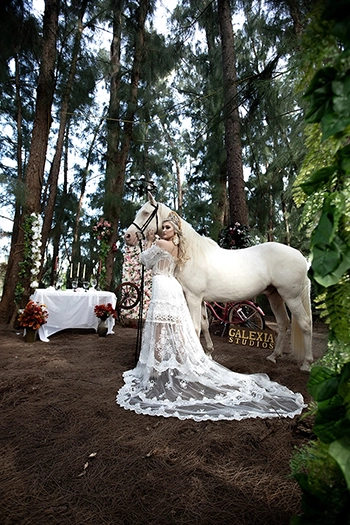
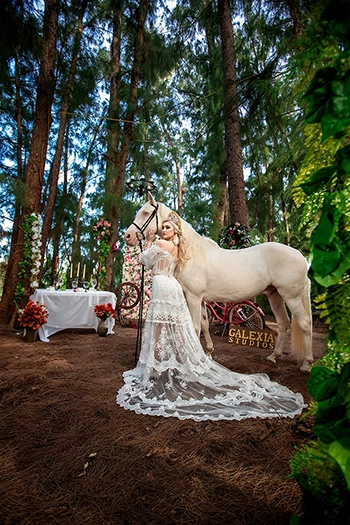
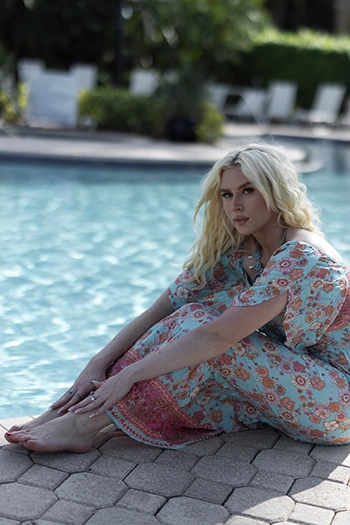
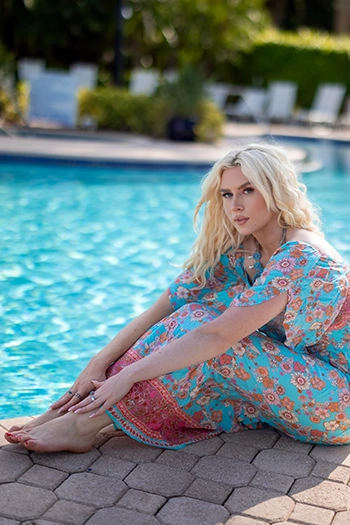
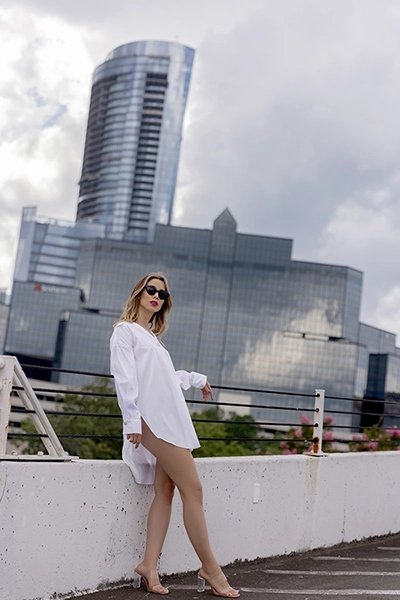
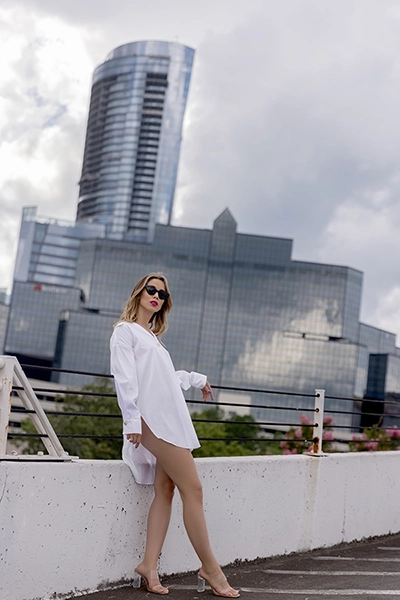
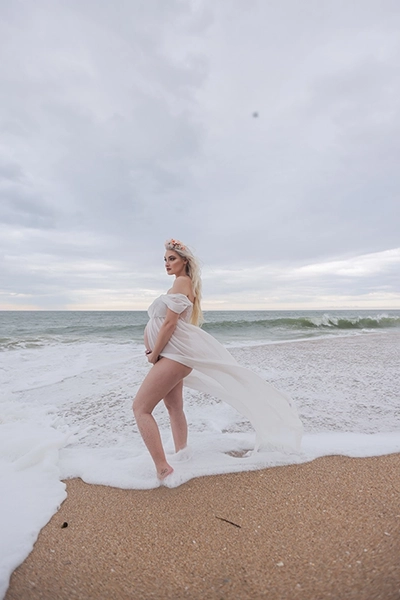
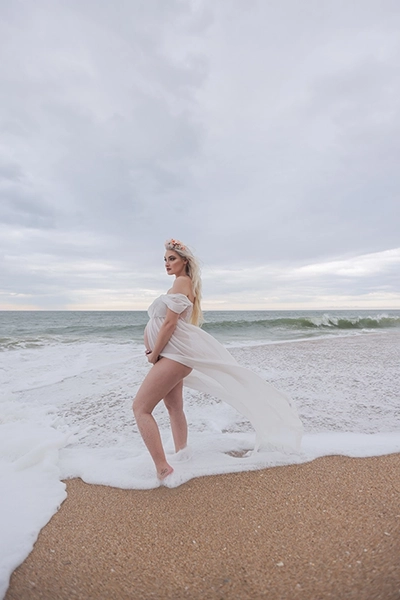
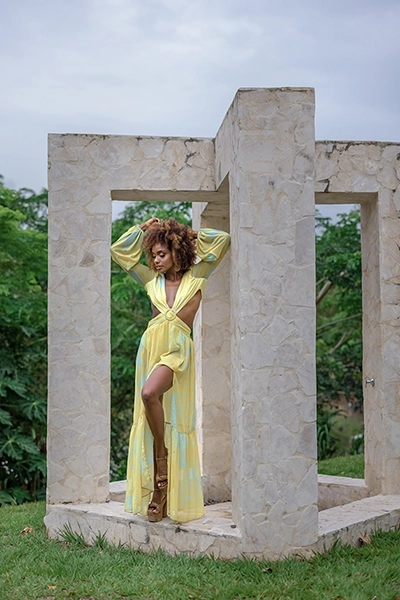
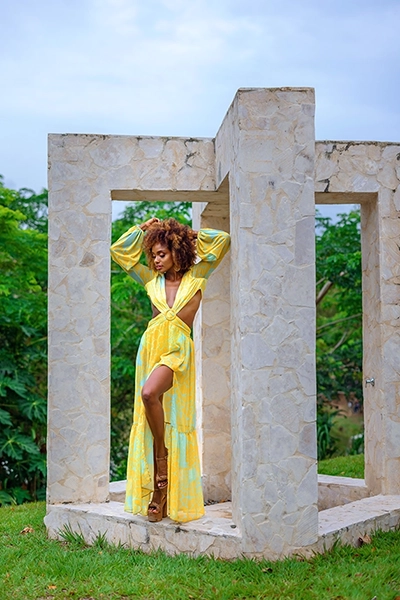
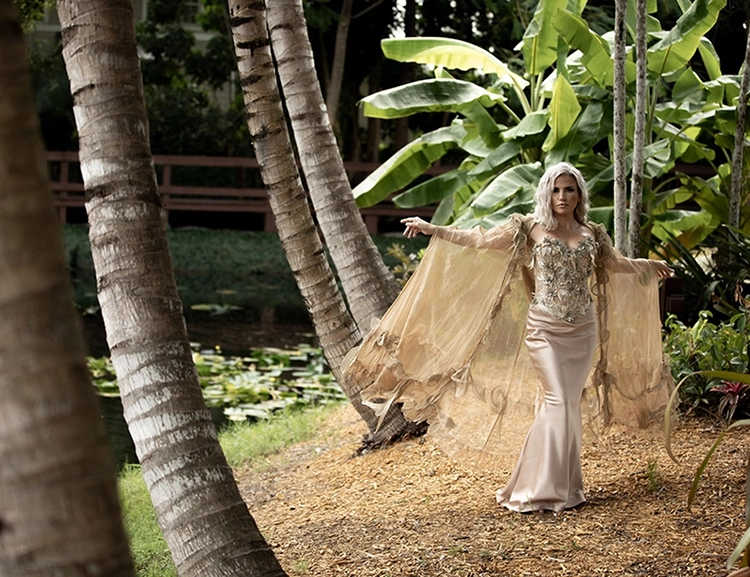
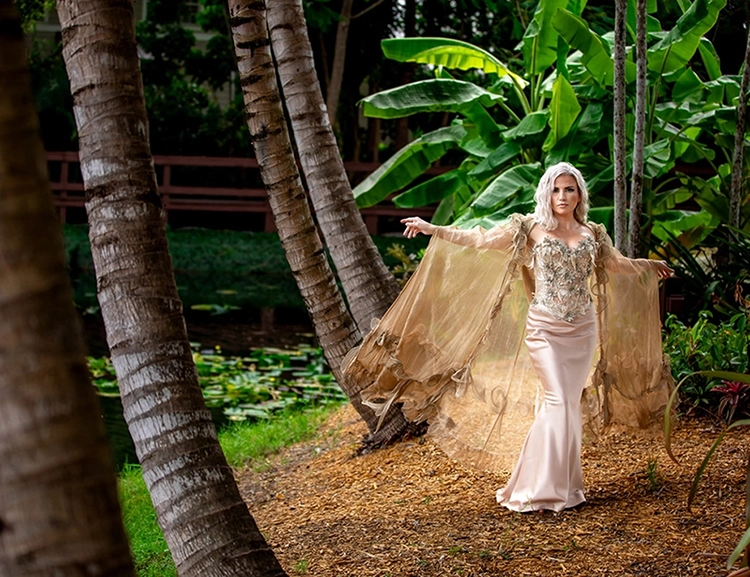
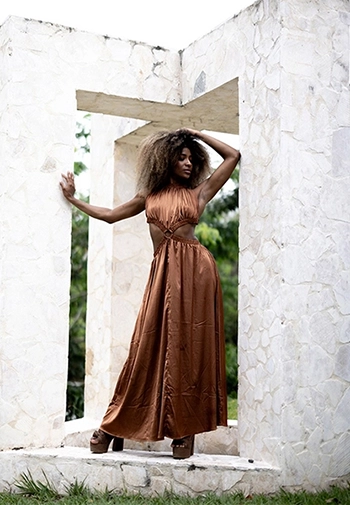
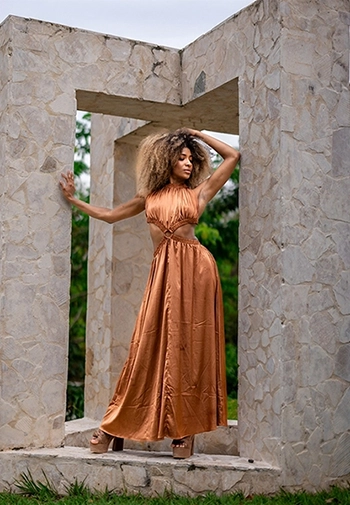
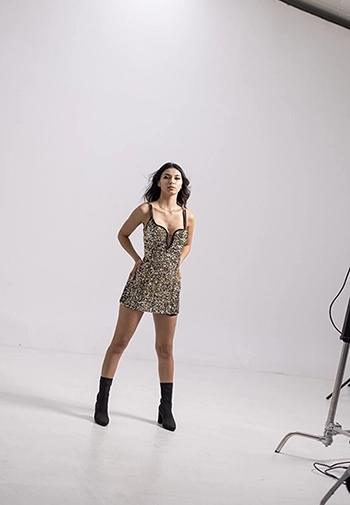
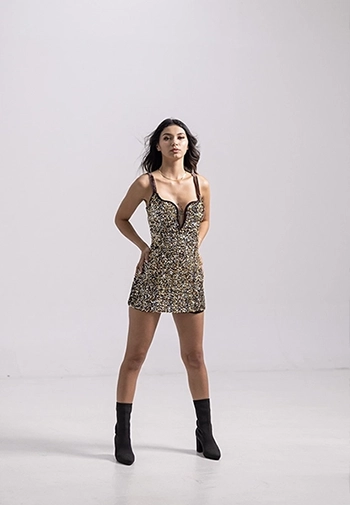
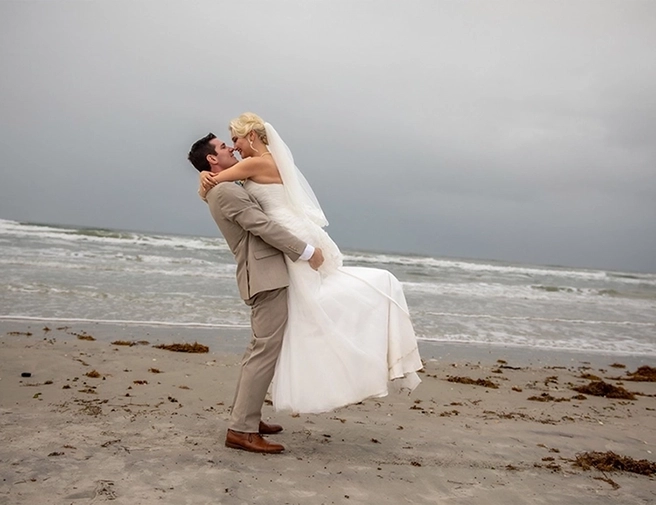
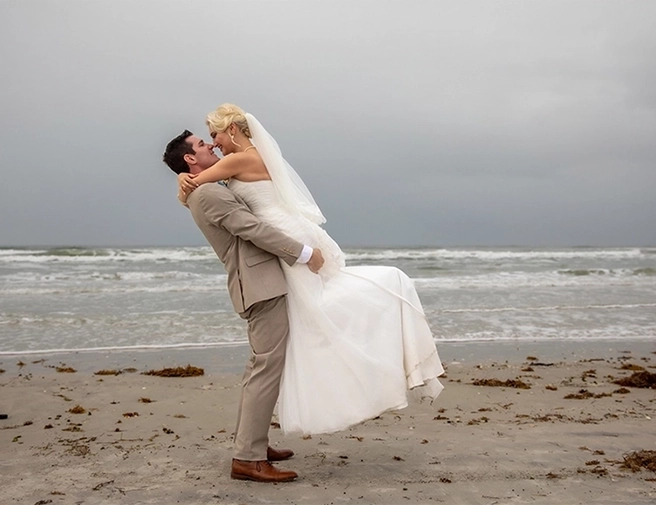
Lightroom Basic - Light - Before Lightroom Basic - Light - After

LR Pro |

FAQ

LR focuses primarily on color correction and lighting adjustments. These edits are performed through using the basic menu, HSL, and noise reduction features in Lightroom.
In the LR Pro, in addition to what is offered in LR, additional menus are used, as well as brushes and radials if needed, so that in addition to adjusting the normal color and lighting of each photo, lighting defects can be eliminated as much as possible.
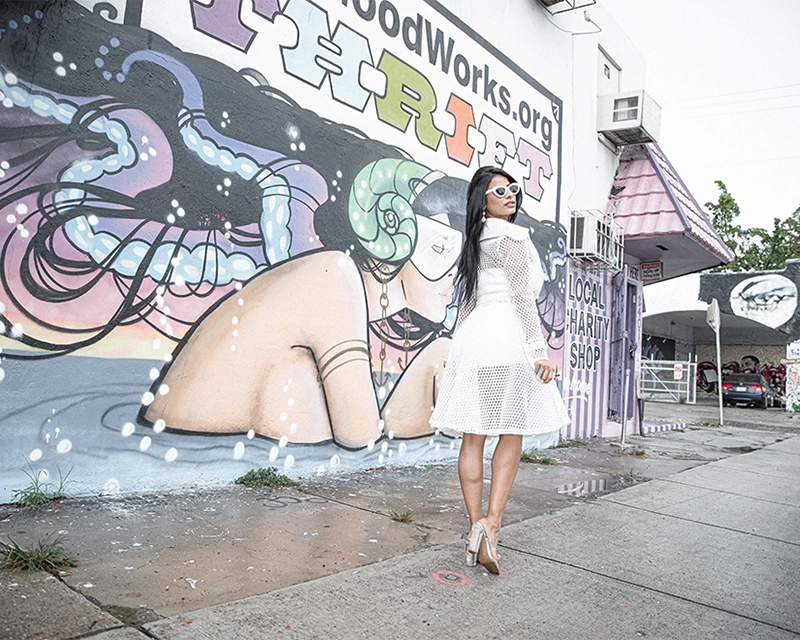
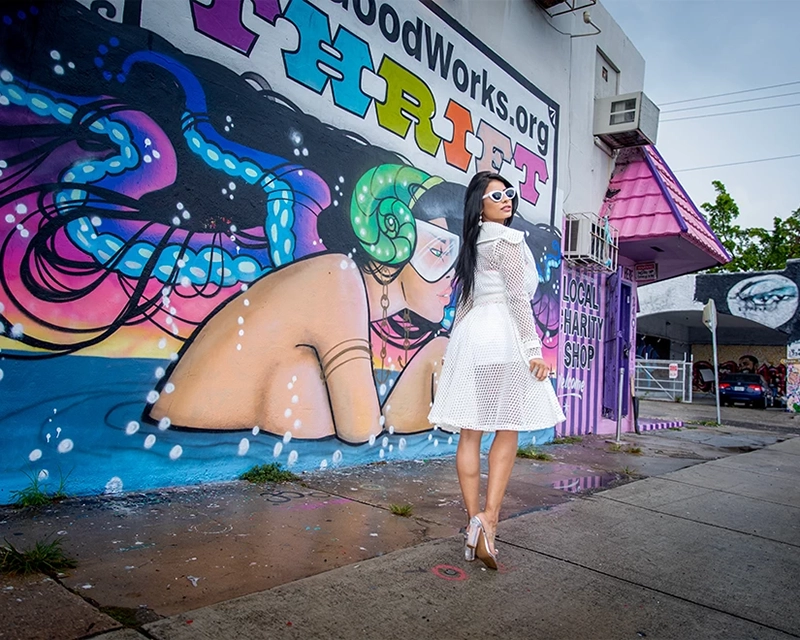
We have provided a set of color profiles on our website. Our team can also create a color profile of your liking and apply it to your catalog.
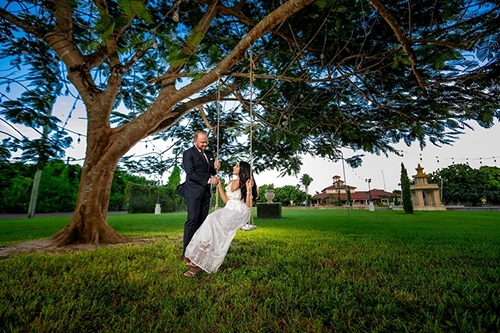
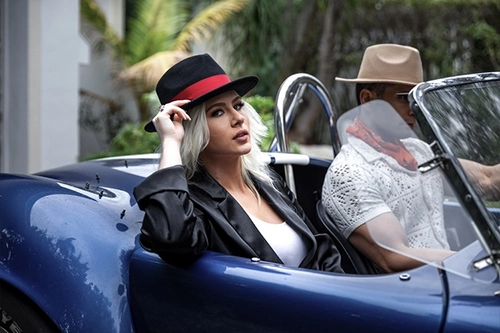
When we begin the editing process, we will apply your selected color profile on the entire catalog and edit the photos based on that, ensuring the color profile matches the entire catalog in a cohesive way.

You may provide your preferred settings and we will turn it into your color profile at your own request.

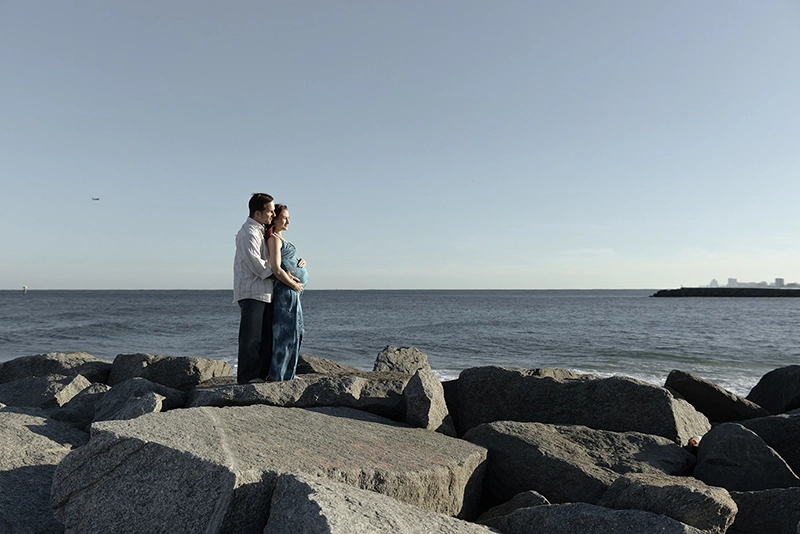
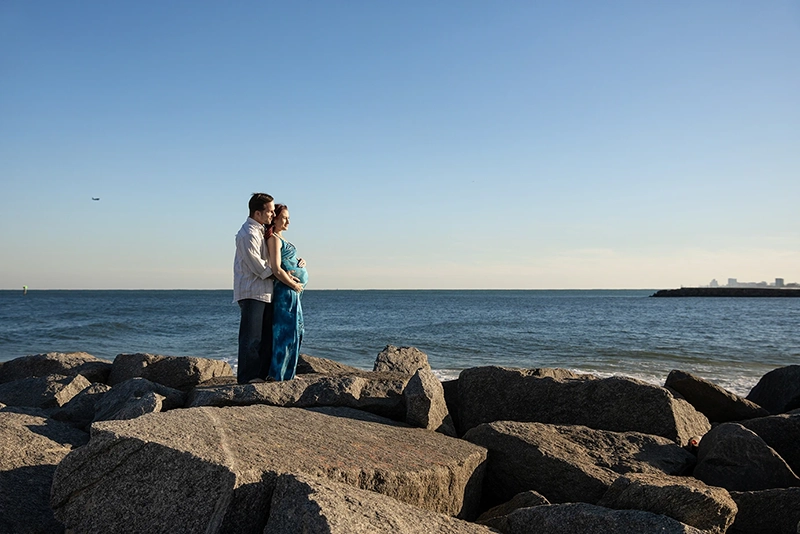
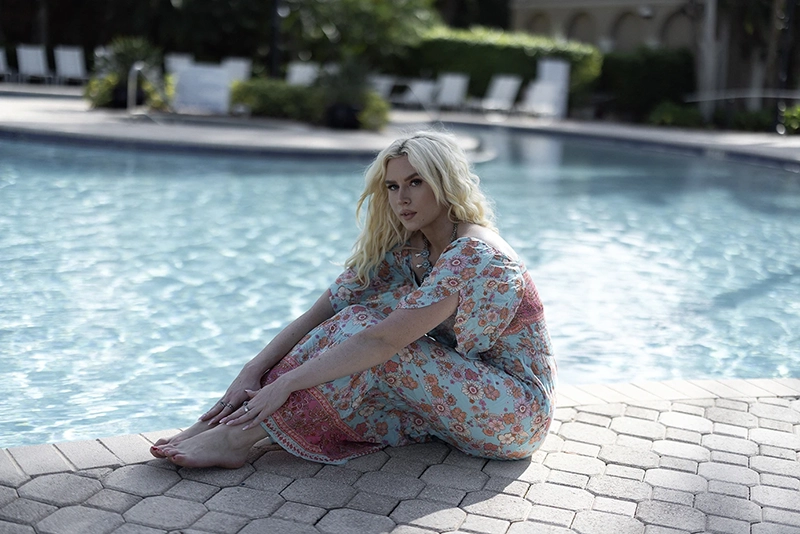
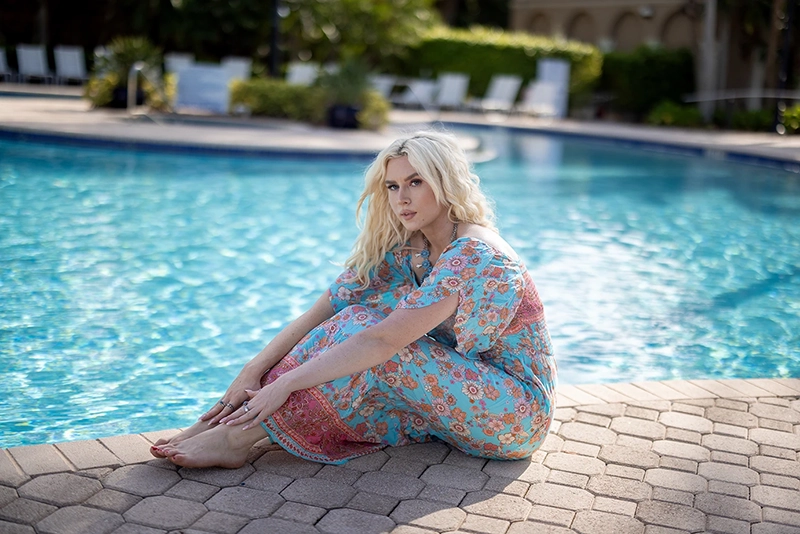
Brushing

Darken excessively bright areas and lighten excessively dark areas to reach normal.Since sometimes the Lightroom settings alone are not able to fix the optical color defects of the image, in the Lightroom Pro service we try to solve this problem with other features of the Lightroom software.

Brushing in Lightroom is done using various tools such as brush, linear gradient or radial to make the lights of the image more uniform.
Also, this action creates more depth and a more beautiful effect in the image.
This is done for different parts of the image, including the background or the subject, so that every part that has the ability to return more detail is not missed.

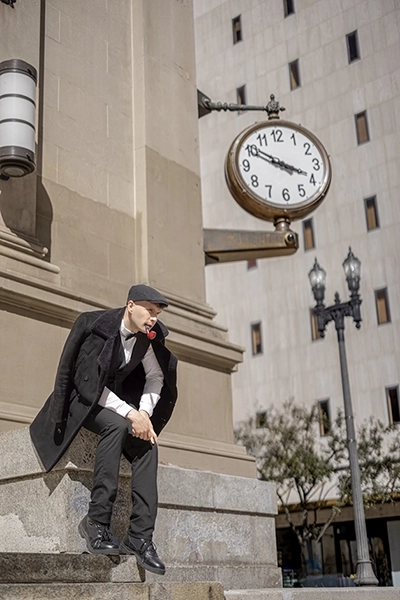
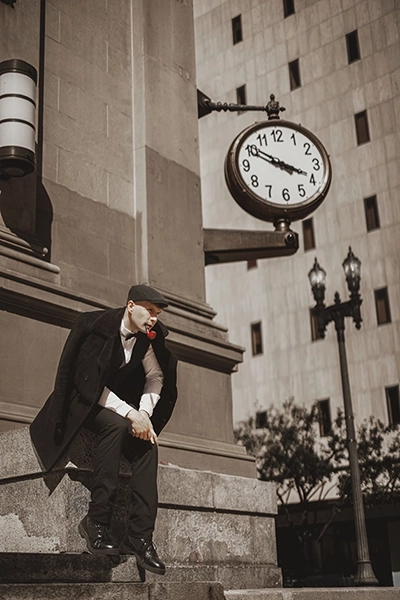
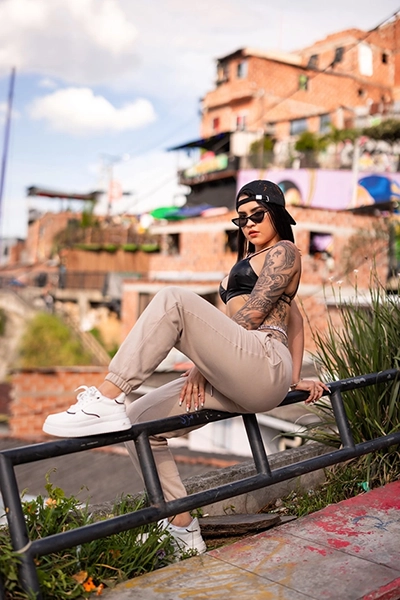
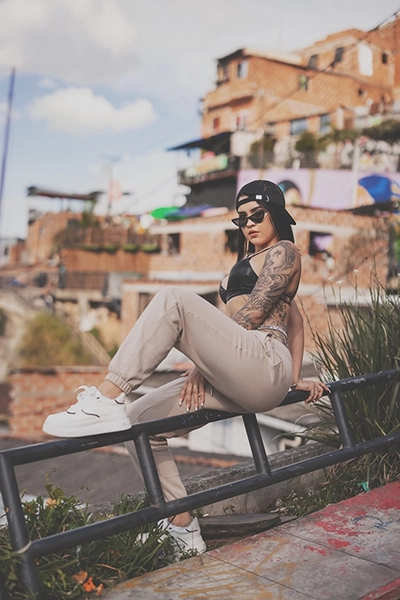
Lightroom Pro Brushing Advanced Galexiaediting Lightroom Pro Brushing Advanced Galexiaediting

Similarities and difference between Brushing in Lightroom and Photoshop services
The goal of Brushing is the same both in Lightroom and in Photoshop, and in both, the dark and light points of the photo are worked on to achieve the desired result. But it should be noted that the nature of the software is different and this causes differences.
In Brushing in Photoshop services, which are two different types and are explained in detail in the Photoshop section, due to the existence of separate layers, you can focus more and more precisely on different parts of the image.
But in terms of the result, Brushing in Lightroom is very similar to Dodge and Burning Al Carte in Photoshop Basic service with the difference that due to the limitation of tools and the inability to edit in multiple stages, changes can be made to a lesser extent than in Photoshop

Lightroom Pro Brushing Advanced Galexiaediting Lightroom Pro Brushing Advanced Galexiaediting

Lens Correction

Eliminating lens distortion based on the type of lens used.

Lightroom Pro lens correction Advanced Galexiaediting Lightroom Pro lens correction Advanced Galexiaediting

Capturing lens deformation in Lightroom may seem simple at first, but Lightroom catalogs often contain numerous photos taken with various lenses, each having a different degree of distortion. In some cases, the software does not automatically recognize the lens, necessitating manual selection. Additionally, the amount of distortion is not always consistent and may vary depending on the surrounding stretch.

Lightroom Pro lens correction Advanced Galexiaediting Lightroom Pro lens correction Advanced Galexiaediting

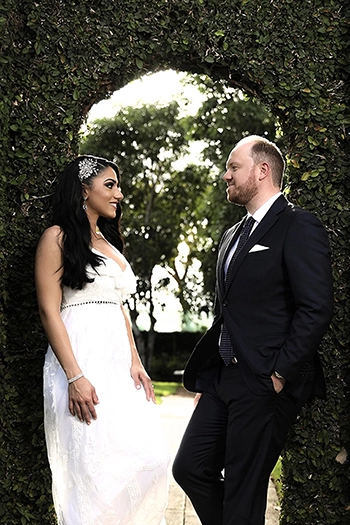
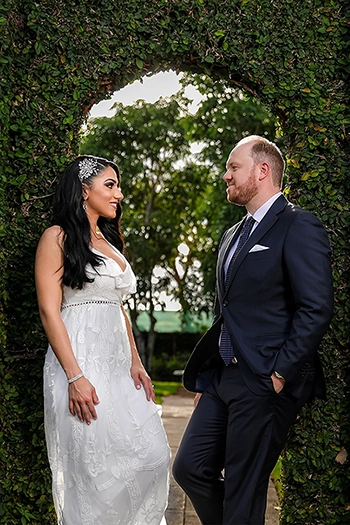
Vignette

Vignette in Lightroom Pro is applied to enhance the beauty of the photo and draw more attention to the main subject.

Vignettie in Lightroom Pro is done for beauty and to draw more attention to the main subject of the photo.

Based on the type of color, light, and framing of each photo, the amount of vignetting will vary. Vignetting is usually avoided in completely white areas as it does not enhance the image’s beauty.

If you prefer a significant amount of vignetting, you can share this preference with us, and we will accommodate it.

Vignetting is applied to both indoor and outdoor photos. For studio photos with a white background, it is done carefully to avoid negatively affecting the white color.

Lightroom Pro vignette Advanced Galexiaediting Lightroom Pro vignette Advanced Galexiaediting

Spot Removal

The Spot Removal add-on removes the small and distracting elements of the image. If Spot Removal leaves noticeable marks or interferes with other elements in the image, it is avoided.
Lightroom Pro Spot Removal Lightroom Pro Spot Removal

Color Profile(Presets)

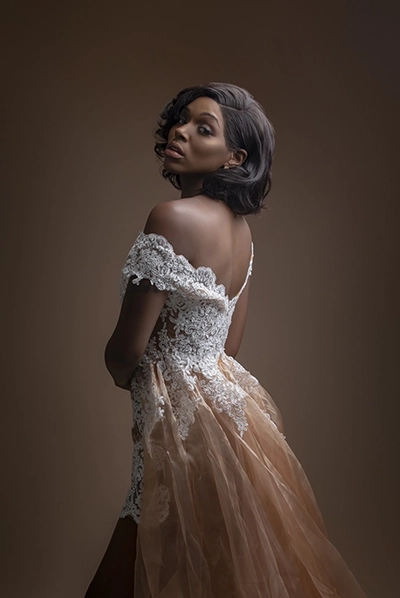
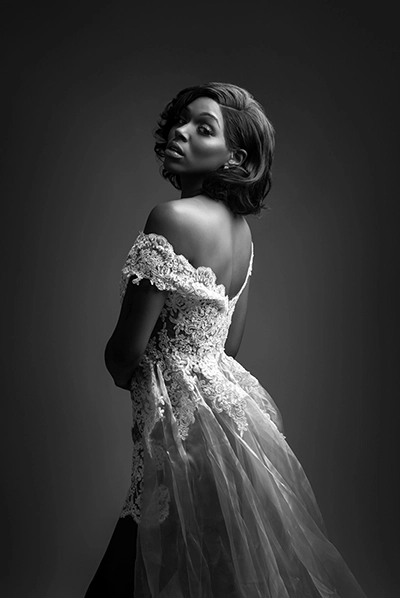
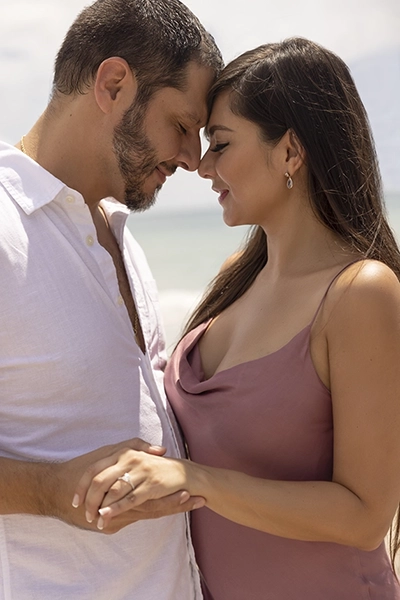
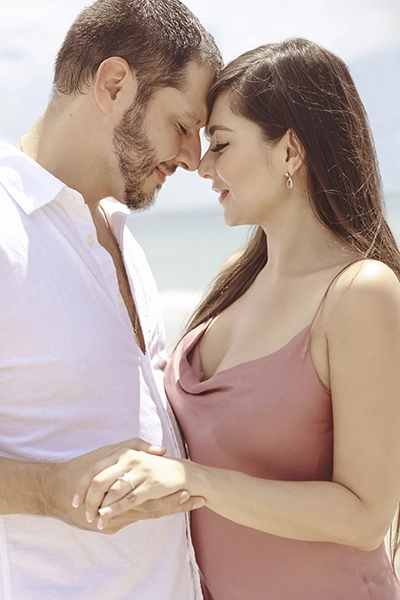
The Preset add-on allows you to choose from a set of available presets to apply to your photos. Simply select a preset that suits your style and it will be applied to your catalog. These filters are designed to not alter other edits, but help unify your photos aesthetically.

Dramatic

Photoshop-Basic-Advanced-Filter-Dramatic-Before-02 Photoshop-Basic-Advanced-Filter-Dramatic-After-02

Cinematic

Photoshop-Basic-Advanced-Filter-Cinematic-Before-01 Photoshop-Basic-Advanced-Filter-Cinematic-After-01

Vivid

Photoshop-Basic-Advanced-Filter-Vivid-Before-01 Photoshop-Basic-Advanced-Filter-Vivid-After-01
Photoshop-Basic-Advanced-Filter-Moody-Before-01 Photoshop-Basic-Advanced-Filter-Moody-After-01

Moody

Black & White

Photoshop-Basic-Advanced-Filter-Black-White-High-Contrast-Before-02 Photoshop-Basic-Advanced-Filter-Black-White-High-Contrast-After-02

Light & Airy

Photoshop-Basic-Advanced-Filter-Light-and-Airy-Before-02 Photoshop-Basic-Advanced-Filter-Light-and-Airy-After-02

Masking

The Masking add-on allows for the usage of the masking tool. It enhances depth and beauty in any photo that is suitable for it, as long as the results are natural.
Lightroom Pro masking Lightroom Pro masking

Cropping & Straightening

With the Crop & Straightening add-on, you can easily adjust any photo as needed. There’s no need to specify which photos beforehand, but if you have specific cropping guidelines, feel free to share them.
Crop Straightening Lightroom Crop Straightening Lightroom